Miscellaneous VS Code Stuff
Top-Level Contents
Temporarily Hiding Comments in VS Code Editor
Date: 29 June 2026
Section Contents
- VS Code Built-In Fold and Unfold Comments Features
- VS Code Hide Comments Extension
- Converting Line Comments to Block Comments
- VS Code folding: Article(s) and Official Documentation
VS Code Built-In Fold and Unfold Comments Features
VS Code built-in feature to collapse multi-line block (/* ... */) comments out of sight. However, when I tried it, it collapsed only some sets of contiguous // comments.
- Command: Fold All Comments -> Ctrl + K then Ctrl + /
- First time, I tried above keyboard shortcut it did not work. The command thru command palette worked. Later the keyboard shortcut also worked.
- Command: UnFold All -> Ctrl + K then Ctrl + J
- First time, I tried it via command palette, it gave some error related to 'Pylance: Unfold All Docstrings'. Looks like when I typed Unfold All, that command got selected which seems to be different from standard Unfold All. The keyboard shortcut worked right away.
Built-in universal folding shortcut that collapses all comments, functions, and loops down to a single line.
- Command: Fold All -> Ctrl + K then Ctrl + 0
- Command: UnFold All -> Ctrl + K then Ctrl + J
- Same command as above to unfold
VS Code Hide Comments Extension
Hide Comments VS Code extension: https://marketplace.visualstudio.com/items?itemName=eliostruyf.vscode-hide-comments
Commands:
- Hide Comments: Toggle the show/hide of all comments
- Hide Comments: Hide all comments
- Hide Comments: Show all comments
On the editor title (top-right in editor file tabs bar), a toggle button is available to show/hide the comments quickly:
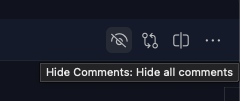
Installed and tried it. 'Hide all comments' folds some multi-line comments and makes all other comments invisible resulting in blank lines.
Seems useful. The editor title toggle action button works and is very convenient. If required, a key binding can be assigned to the Command: Hide Comments: Toggle the show/hide of all comments.
It has some "Hide additional lines by regex" feature which can be used to hide custom regex lines like console.log lines. I have not explored that as of now.
[Google Search AI review addition:]
⚠️ Important Uninstallation Warning
Keep this in mind for the future: Because this extension works by injecting transparency settings into your VS Code configuration workspace, always click the toggle button to "Show Comments" before you disable or uninstall it. If you uninstall it while comments are hidden, your comments might stay invisible even after the plugin is gone, forcing you to manually clean out your settings.json file. [Ravi: The above mentioned extension page gives details on how to do this manually.]
Converting Line Comments to Block Comments
I was under the impression that both VS Code's native folding engine and the 'Hide Comments' extension may handle block comments (/* ... */) more reliably than long sequences of contiguous line comments (//). However, in testing, it was seen that they fail to collapse some block comments too, even if new lines were added before and after the comment block. I think it made no difference whether contiguous line comments were used or block comments were used. Some contiguous line comments/block comments got collapsed and some didn't.
A large block of // comments can be easily converted into a single block comment using a quick two-step keyboard shortcut.
How to convert:
- Highlight all the contiguous lines of
//comments you want to change. - Uncomment them: Press
Ctrl + /(Windows/Linux) orCmd + /(Mac) to turn them back into plain text. - Wrap in a Block Comment: While the text is still highlighted, press
Shift + Alt + A(Windows/Linux) orShift + Option + A(Mac).
Note: The block comment shortcut (Shift + Alt + A) acts as a toggle. Highlighting an existing block comment and pressing the shortcut again will instantly remove the /* and */ delimiters.
VS Code folding: Article(s) and Official Documentation
- https://stackoverflow.com/questions/51139881/visual-code-fold-comments
- https://code.visualstudio.com/docs/editing/codebasics#_folding has details about VS Code Folding features and customization:
- Has more fine-grained fold commands list like (they worked well in my testing):
- Fold (Ctrl+Shift+[) folds the innermost uncollapsed region at the cursor.
- Unfold (Ctrl+Shift+]) unfolds the collapsed region at the cursor.
- Toggle Fold (Ctrl+K Ctrl+L) folds or unfolds the region at the cursor.
- TypeScript/JavaScript region markers worked for VS Code fine grained Fold region but did not work for Fold All Block Comments. So may not be useful for this use case. The markers are:
- //#region
- //#endregion
VS Code UI for Branch Creation, Merge and Removal
- Overview
- Branches and Worktrees
- Create new branches
- Rename and delete branches
- Merge and publish branches
- Sync changes is safe when you know that only local repo has new changes and so no pull will be done from remote.
- If local repo has squashed commits (see squashing commits entry below) then Sync changes should not be done.
- Working with repositories and remotes
- Resolve merge conflicts in VS Code
Additional Info
- VS Code UI for squashing commits using built-in visual editor
- VS Code UI would have provided warning for delete of local WIP branch if commits on WIP branch did not exist on current (main) branch
Temporary dev branch lifecycle through VS Code UI
- Clicked on main in Status bar bottom-left
- Chose 'Create new branch' in the menu. Gave dev as branch name.
- Local dev branch got created.
- Switched to Source Control view.
- Clicked large 'Publish' button showed in left pane towards top.
- Remote dev branch got created.
- Hovering mouse over last commit showed a popup with commit details including the branches: dev, origin/dev, origin/main, main.
- In the menu, chose local dev branch.
- Then local dev got merged in local main
- Remote main branch got updated with local main branch changes.
- Netlify build & deploy also got triggered which completed successfully.
- Chose local dev branch
- local dev branch got deleted.
- Chose (remote) origin/dev branch
- Remote dev branch got deleted.
- On step 7: In the past, I had chosen 'Sync Changes' and said OK to warning that it will also pull from remote as I knew that prior to merge, local and remote were in sync. So there would be no pulls from remote. Only changes merged in local main would be pushed to remote main. The command went through smoothly. As detailed in step 7, I could have chosen push command from the menu to achieve the same effect without the warning.
- On step 8: I believe that if dev branch on local was ahead in commits from main, the delete branch command would have given a warning or failed.
- On step 9: As per Gemini: Git allows deleting remote branches even if unmerged, though VS Code typically prompts a standard "Are you sure you want to delete remote branch X?" confirmation modal.
Comments
Post a Comment